How to Use HomePods As Computer Speakers for Your Mac
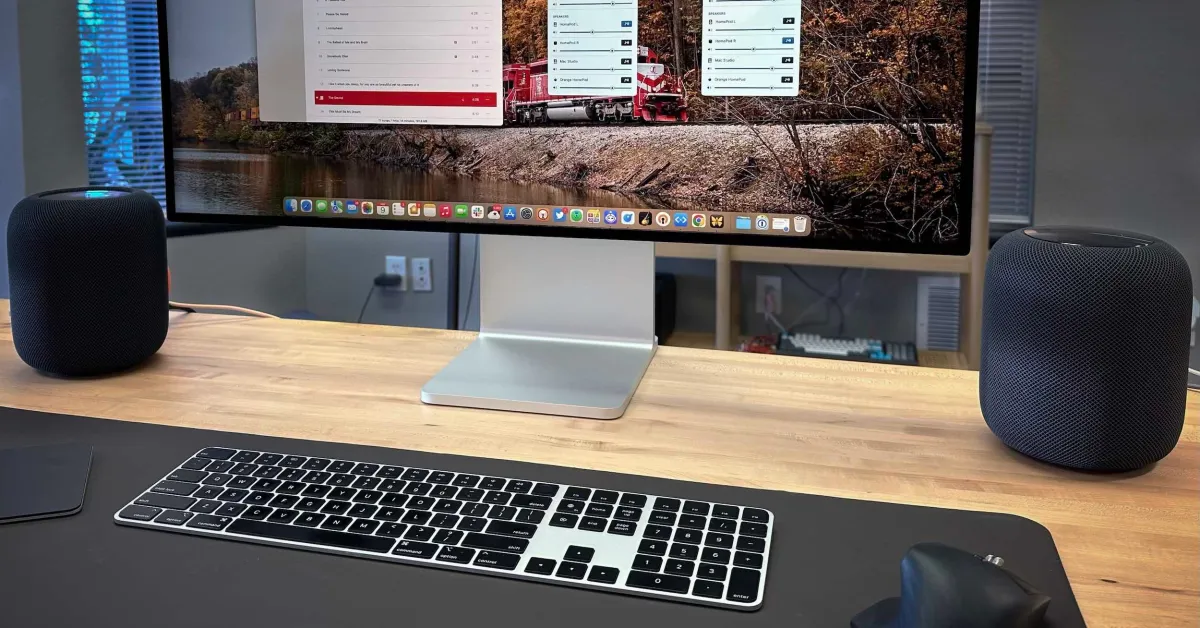
HomePods are becoming increasingly popular for their superior sound quality and technology. With their sleek design, high-quality audio, and advanced capabilities, it’s easy to see why. But did you know that you can use them as computer speakers for your Mac? Here, we’ll take you step-by-step through the process of using HomePods as computer speakers for your Mac, so you can get the most out of your audio experience.
Understanding the HomePod Setup
Before exploring how to use HomePods as computer speakers, let’s go over the basics of the HomePod setup. You’ll need a Mac and an Apple ID to get started. From there, you’ll need to pair your HomePod with your Mac in order to use it as a computer speaker. Here’s what you’ll need:
The Benefits of HomePods As Computer Speakers
Using your HomePods as computer speakers has many advantages. By using your HomePods as computer speakers, you’ll get:
Crystal-clear sound: HomePods use advanced technology to deliver amazing audio through their two speakers.
Space-saving design: Unlike other computer speakers, HomePods are sleek and compact, making them easy to fit in any space.
Multi-directional sound: HomePods use their advanced sound technology to deliver 360° sound in any direction.
AirPlay Connectivity: HomePods are AirPlay compatible, allowing you to connect them to your Apple devices or streaming services.
These are just a few of the many benefits of using HomePods as computer speakers. With all of these features, you can turn your Mac into a powerhouse of sound.
Step-by-Step Guide On How to Use HomePods As Computer Speakers
Now that you know a bit more about the HomePod setup and the benefits of using HomePods as computer speakers, it’s time to get started. Here’s a step-by-step guide on how to get the most out of your HomePods as computer speakers for your Mac:
Step 1: Gets ready: Make sure you have everything you need to get started – your Mac, Apple ID, and HomePods.
Step 2: Connect your HomePod to your Mac: Whether you’re using one or two HomePods, you’ll need to connect them to your Mac. To do this, open the Home app on your Mac, select the HomePod, then select the “Set Up” option.
Step 3: Set up your HomePod: Follow the on-screen instructions to set up your HomePod. Once you’ve set up your HomePod, it will be connected to your Mac.
Step 4: Open the Home app on your Mac: Open the Home app on your Mac, then select the HomePod you want to use as a computer speaker.
Step 5: Select the “Settings” option: On the HomePod settings screen, select the “Audio” option.
Step 6: Select the “Speaker” option: On the Audio settings page, select the “Speaker” option.
Step 7: Select the “Computer” option: On the Speaker settings page, select the “Computer” option.
Step 8: Select your Mac as the speaker: On the Computer settings page, you’ll be able to select your Mac as the speaker.
Step 9: Adjust settings as needed: You can adjust the settings as needed, such as volume or equalizer settings.
Step 10: Enjoy your new sound: Once you’ve completed the setup process, you’ll be able to enjoy your new HomePod setup as computer speakers for your Mac.
Troubleshooting Your HomePod Setup
If you’re having trouble with your HomePod setup, here are some troubleshooting tips:
Make sure you’re using the latest version of macOS: Make sure your Mac is running the most up-to-date version of macOS.
Toggle Bluetooth on and off: If your HomePod isn’t connecting correctly, try turning Bluetooth on and off on your Mac.
Restart your Mac: If the first two tips don’t work, try restarting your Mac.
Check your internet connection: Make sure your internet connection is stable, as weak internet connection can cause issues with your HomePod and your Mac.
These are just a few tips to help you troubleshoot your HomePod setup. If these tips don’t work, contact Apple Support for more help.
Using HomePods as computer speakers for your Mac is easy and can provide an amazing sound experience. All you need is your Mac, an Apple ID, and one or two HomePods to get started. With this step-by-step guide and a few troubleshooting tips, it’s easy to use your HomePods as computer speakers for your Mac.